Notes of my Lotus Notes Headline Animator

Search My Blog

Tuesday, August 2, 2016

Exporting/Logging e-mail details in some excel sheet from any Folder or Inbox

If you want all these details logged in some excel sheet

1.     Select the documents and go to File menu > select Export...

 2.     Select folder in which you want to save.
         Select Save as type as Comma separated value.
         Give some name, say, attachment_logs.csv.
         Then click on Export button.
 3.     It would bring another small dialogue box.
         If you want details of selected mails then select How Much to Export as 'Selected documents'.
         Otherwise you may select 'All documents'.
         Export Character Set keep as 'Default character set'.
         Check the Details to Incorporate as 'Include View titles'.
         Otherwise just with the data you may get confused.
         Especially if you are NOT a lotus notes developer, then you would get confused with the extra column values that get exported.

4.     Once the export is completed you would see the below message in the bottom pane of your mailbox.
        You may delete the extra columns that get populated in the .csv file and keep only those you need.

 The result would look somewhat like this:

Hope this helps!! :)

How to see how many attachments are there in each mail and what are the attachment names?

Follow the images and make changes in your Views > All Documents. Or you may make these changes in specific folders as well.
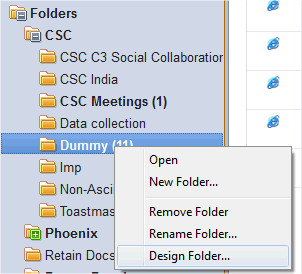
1.     Right-click in the folder/view where you have your mails (with or without attachments) and select Design Folder...

2.      Select the Who column as highlighted in the below snapshot.
And do right click - then select Insert New Column...

3.     A new blank column will be created.
        Double click on the column and below properties box will open.
        Give a name in the Title text box.
        Select Multi-value separator: as New Line.
        Then in the bottom pane it must be showing various options.
        Select Attachment Names.

4.     Similarly you can insert another new column in front of Attachment Names column and give a name, say Count.
        For this you set Multi-value separator as ‘None’ - which is the default option set.
        In the bottom pane you can select Attachments instead.
        This will give you number of attachments present in each mail.

5.     Ctrl+S to save the design changes of the folder/view.
        Then close the folder/view.
        Close your mailbox and re-open to see the changes.

The new design would look something like this:

Hope it helps!!

Mime content to image file

Objective:

Sub Initialize
On Error Goto Errhandler
Dim s As New NotesSession
Dim db As NotesDatabase
Dim dc As NotesDocumentCollection
Dim doc As NotesDocument

Set db=s.CurrentDatabase
Set dc=db.UnprocessedDocuments
Set doc=dc.GetFirstDocument

Dim content As String
Dim mimeroot As NotesMimeEntity, mime As NotesMimeEntity

s.ConvertMime = False
If Not(doc Is Nothing) Then
Set mimeroot = doc.GetMIMEEntity
Set mime = mimeroot.GetNextEntity
If Not(mime Is Nothing) Then
content$ = mime.ContentAsText
Else
Print "Not a MIME"
End If
Else
Print "No document is selected"
End If

Dim stream As NotesStream
Set stream = s.CreateStream
If Not stream.Open("C:\StreamFiles\gg.jpg") Then
Messagebox pathname$,, "Open failed"
Goto theEnd
End If

Call mime.DecodeContent()
Call mime.GetContentAsBytes(stream, True)

Call stream.Close()


theEnd:
Exit Sub

ErrHandler:
Msgbox "Erl() : " & Erl() & " Err() : " & Err() & " Error : " & Error$
Print "Erl() : " & Erl() & " Err() : " & Err() & " Error : " & Error$
End Sub

Extract all attachments from a folder without opening the file

Sub Click(Source As Button)
%REM
Created by Gayatri Gouda gayatrigouda@gmail.com on 24th Jan 2013
Please follow the comments in the code and you can customise the button to extract files
from a particular folder in your mailbox, to a particular path in your drive
%END REM

 On Error Goto errhandle


 'Declarations
 Dim session As New NotesSession
 Dim db As notesdatabase
 Dim view As NotesView
 Dim doc As NotesDocument

 Dim object As NotesEmbeddedObject

 Dim collection As NotesDocumentCollection
 Dim currentResponse As NotesDocument

 Dim tempDirectory, actualDir, ptempDirectory As String
 Dim nameAtt, result As Variant
 Dim numAtt, count, cnt, i, j, k, l, indx As Integer
 Dim flag As String
 Dim myNames() As String
 Dim mth As String, newDir As String, pnewDir As String
 Dim filename As String, fileName1 As String
 Dim edate As String

 'to allow users select the dialogue box
 Dim ws As New NotesUIWorkspace
 Dim dirpath As Variant
 Dim dirname As String

 Msgbox "If there are NO files in the folder in which you want the files to be extracted, then CREATE a New Text Document.txt file in it and then select that file in the File Open Dialogue box."

 dirpath = ws.OpenFileDialog( True,"Select any file from the folder in which you want the files to be extracted. NOTE: CREATE a New Text Document.txt file if there are no files in the folder.",, "C:\Users")
 If Not(Isempty(dirpath)) Then
  dirname = Strleftback(dirpath(0), "\") + "\"
  Print "Here's the folder path in which your files are saved: " + dirname
 Else
  Msgbox "No files are selected. Please select any file in the folder."
  Print "No files are selected. Please select any file in the folder."
  Goto theEnd
 End If


%REM
Mention the custom folder of your choice in tempDirectory folder.
Make sure you give \\ to separate the folder names in the path.
This path should already have been created manually by you.
%END REM
 tempDirectory = dirname

%REM
This is the one you see in the message box after the files are extracted.
Here the \\ is not needed. You can mention the path name as it is.
%END REM
 ptempDirectory = dirname

%REM
In case you want all your files to the path you have mentioned above then
find section MakeDIR  and comment it out with %rem and %endrem words
%END REM
 newDir = pnewDir = dirname


 Set db = session.CurrentDatabase

%REM
Set view = db.GetView("Data collection")
 ---- Date collection is the folder name.
Instead of the 'Data collection' folder name you can put some other folder name in " " quotes.
Make sure you put the exact folder name. Check if you have put any extra spaces.
%END REM

 Set view = db.GetView("Data collection")

 numAtt = count = cnt = 0

 Set doc = view.GetFirstDocument

 While Not (doc Is Nothing)

  result = Evaluate("@Attachments", doc)
  nameAtt = Evaluate("@AttachmentNames", doc)
  numAtt = result(0)

  If numAtt > 0 Then
   For i=0 To numAtt-1 Step 1
    If nameAtt(0) <> "" Then
     Set object = doc.GetAttachment( nameAtt( i ) )
     indx = 0     
     flag = "no"     
     For k = 1 To cnt Step 1      
      If nameAtt( i ) = myNames( k ) Then
       indx = indx + 1
       flag = "yes"
      End If
     Next
    
    
     If flag = "yes" Then
      REM This is how the new file is renamed: <Actual file name _ index . extension>
      filename = Strleftback(nameAtt(i), ".") + "_" + Cstr(indx) + "." + Strrightback(nameAtt(i), ".")
     Else
      filename = nameAtt( i )
     End If


%REM
'edate' is the date of the e-mail on which it is received
'mth' is set as <Month of the received date of e-mail><ddmmyyyy format of the received date of e-mail>
%END REM
    
%REM
'newDir' is programatically set as the Path you created manually \ monthddmmyyyy
  e.g.  C:\\Gayatri\AM\Data Collection Report\January28012013
'pnewDir' is for display purpose
%END REM    
    
%REM
Checking if the folder <Monthddmmyyyy> is already created.
If yes, then it will move to the section where the files are extracted.
If no, it will try to create the folder <Monthddmmyyyy> in the Path you have mentioned in 'tempDirectory' variable
%END REM  
    
'MakeDIR    
     REM START section MakeDIR    
    
     edate = doc.GetFirstItem("PostedDate").DateTimeValue.DateOnly
     mth = setMonth(Month(edate)) & Cstr(Format(edate, "ddmmyyyy"))
    
     newDir = tempDirectory & mth & "\\"
     pnewDir = ptempDirectory & mth & "\"
    
    
     fileName1 = Dir$(tempDirectory, 16)
    
     Do While fileName1$ <> ""
      fileName1$ = Dir$()
      If fileName1$ = mth Then Goto extrctFile
     Loop
    
     Mkdir newDir
     REM END section MakeDIR


extrctFile:
     REM this is where the extract happens.
     actualDir = newDir & filename
    
     Call object.ExtractFile(actualDir)
     count = count + 1
    
    End If
   Next
  End If

  If numAtt > 0 Then             
   Redim Preserve myNames(cnt+numAtt)
   For l = 1 To numAtt
    myNames(cnt + l) = nameAtt( l - 1  )
   Next
   cnt = cnt + numAtt
  End If

  Set doc = view.GetNextDocument (doc)

 Wend

 Msgbox "Total " &  count & " files are extracted to the path: " &  ptempDirectory
 Print "Total " &  count & " files are extracted to the path: " &  ptempDirectory


theEnd:
 Exit Sub

errhandle:
 Messagebox " Error line: " & Erl() & " error number : " & Err() & " description : " & Error$  & "."
 Goto theEnd
End Sub

Function setMonth(mth As Integer)  As String Dim mth1 As String

 Select Case mth
 Case 1 : mth1 = "January"
 Case 2 : mth1 = "February"
 Case 3 : mth1 = "March"
 Case 4 : mth1 = "April"
 Case 5 : mth1 = "May"
 Case 6 : mth1 = "June"
 Case 7 : mth1 = "July"
 Case 8 : mth1 = "August"
 Case 9 : mth1 = "September"
 Case 10 : mth1 = "October"
 Case 11 : mth1 = "November"
 Case 12 : mth1 = "December"
 Case Else    : mth1 = "Others"
 End Select
 setMonth = mth1
End Function

Tuesday, September 8, 2015

Leading and Trailing Zeroes for Decimal fields when writing from Table to File in DataStage

There was an issue in one of my job where we are provided with a base file which comes with Decimal values of various lengths, precision and scale.

We also have a job where we are reading data from table and writing to a file.

Requirement is to match this file we are creating from table with that of base file.

Problem 1: A decimal column is  coming as 000001234.12, but in the file created it's shown as 0000001234.12.

Problem 2: decimal column is  coming as 00.123, but in the file created it's shown as 000000.000.

NOTE: decimal fields are typed cast to char data type while writing to the file, since the data coming from the file is coming as characters only. 

e.g. 

SELECT
    SNPSHT_DT, POLICY_NUM, 
trim(cast(FUND_VAL AS char(13))) as FUND_VAL,
    FUND_SRC_CD,
    trim(cast(INT_RT_CUR as char(7))) as INT_RT_CUR,
    trim(cast(EIA_FND_GMIC_PCT as char(10))) as EIA_FND_GMIC_PCT,
    trim(cast(STRT_NDX_VAL as char(13))) asSTRT_NDX_VAL
FROM
    EIM.TO_ANTY_FUND order byPOLICY_NUM,CASE_NUM,FUND_CD

Explanation:
When  such issues occur one must check the Metadata of the table first, instead of just experimenting with the length of the character data type.

Understand how the data type is stored. That's what I did and noticed that the length and scale defined for the columns are resulting in such problem.

1st field: Data coming here from base file is 9 numbers + (.) a dot + 2 numbers = 12 characters.

Now the metadata of the table had this column as (12,2) i.e. 12 is Length from which 10 is Precision and 2 is Scale.

So, when the data is actually stored it's internally stored as 10 numbers + (.) + 2 numbers.

Now, (.) may be a part of length in Character data type, however it's not a part of length for Decimal data type, because it IS a part of the data type itself.

Now expecting a 12 characters long data when you type cast the decimal to char(12) you get the data as 0000001234.1, i.e. 12 characters from the beginning.

To get the correct scale when you change char(12) to char(13) you get 0000001234.12 - correct scale but extra leading zero.
So either way your data is not matching.

2nd field: In this case it was observed that metadata of this decimal field was defined as (12,6) i.e. from a Length of 12 Precision is 6 and Scale is 6.

Thus, the data is actually stored internally as 000000.123000.

Now expecting a 6 characters length data when you type cast the decimal to char(6) it gives you the 6 characters from the beginning i.e. 6 zeroes.

If you change your length to char(10) you would match the correct scale but again extra leading zeroes.

Solution: Now since you want to match the output file to the base file, the above solution of plain typecasting isn't right.

A simple solution is to redefine the length and scale of the decimal columns.

Now, my work restricts me to change the DDL of the table. Whatever is defined as per my project standards.

So, I did the redefining in different way. 
I type cast my decimal column to the desired precision and scale first, and then typed cast the redefined decimal to char.

e.g.

SELECT
    SNPSHT_DT,
    POLICY_NUM,   trim(cast(CAST(FUND_VAL as DECIMAL(11,2)) AS char(12))) as FUND_VAL,
    FUND_SRC_CD,
    trim(cast(INT_RT_CUR as char(7))) as INT_RT_CUR,
    trim(cast(cast(EIA_FND_GMIC_PCT as DECIMAL(5,3))as char(6))) as EIA_FND_GMIC_PCT,
    trim(cast(STRT_NDX_VAL as char(13))) asSTRT_NDX_VAL
FROM
    EIM.TO_ANTY_FUND order byPOLICY_NUM,CASE_NUM,FUND_CD

If you notice in the above example I am first type casting the first field to (11,2) and then type casting it to char(12). In the second field I'm type casting it to (5,3) and then doing type cast to char(6).

Thus, I have the exact expected data. i.e. 000001234.12 and 00.123.

Hope it helps you in some way.
:)

Unicode character instead of Space in DataStage

Recently I was debugging a job where we are loading data from a .csv file to table. The problem that was happening is that the Character fields had spaces shown as blocks and not spaces.
Upon checking 2 observations were made:

1) The Character field had the Extended property set to Unicode.
2) Trim function was performed on the column in Transformation stage and assigned back to a Character field.

These 2 were causing the issue.
Once the Unicode option was changed to Blank and the trims were removed from Transformation stage, the Unicode character i.e. Blocks disappeared.

Reverting either of the observation caused in blocks.
One more observation: Blocks did not appear when a Trim was performed on a Character field but assigned to a Varchar field.

:)

Friday, December 21, 2012

Notes document to HTML Excel sheet - Exporting data - web form

Code for exporting data from notes documents to an excel sheet and show it in html form of excel sheet:

Sub Initialize
 On Error Goto GenErr
 Print  "content-type: Application/msexcel"
 Print  "Content-Disposition: attachment; filename=Report1.xls"
 Print "<html>"
 Print "<table border=0>"
 Print "<tr><td colspan=5><center>"
 Print "<b><span id='RptHead'> Report For Test</span></b>"
 Print "</center></td></tr>"
 Print "</table>"


 Dim LOSession As New NotesSession
 Dim LOVw As NotesView
 Dim LODb As NotesDatabase
 Dim LODoc As notesdocument
 Dim LTDate As String
 Dim LVNo As Variant
 Set LODoc = LOSession.DocumentContext
 'LTDate=LODoc.Query(0)

 Set LODb=LOSession.CurrentDatabase
 Set LOVw = LODb.GetView( "vwExcel" )
 Set LODoc = LOVw.GetFirstDocument

 Print "<table border=2 bordercolor=Black>"
 Print "<tr>"
 Print "<td>Sl No </td>"
 Print "<td> Initiators</td>"
 Print "<td>KLID </td>"
 Print "<td>SBU </td>"

 Print "<td>Project Short Name </td>"
 Print "<td>Product Group </td>"
 Print "<td>Product </td>"
 Print "<td>Function </td>"
 Print "<td>LOB </td>"
 Print "<td>Rating by Experts </td>"
 Print "<td>Project Manager </td>"
 Print "<td>Proposal Manager </td>"

 Print "<td>Process Area </td>"
 Print "<td>Process Item </td>"
 Print "<td>Key Learning Title</td>"
 Print "<td>Problem Description </td>"
 Print "<td>Analysis </td>"
 Print "<td>Solution Adopted </td>"
 Print "<td>Learnings </td>"
 Print "<td>Implication </td>"
 Print "<td>DO's  List</td>"
 Print "<td>DONOT's List </td>"
 Print "<td>References </td>"

 Print "<td>Approver </td>"
 Print "<td>Comments </td>"

 Print "</tr>"
 Print "<tr>"
 Print "</tr>"

 j=1
 While Not ( LODoc Is Nothing )
 
  Print "<tr>"
  Dim LVTemp As Variant
  Print "<td>" & j &"</td>"
  For  i=0 To 23
   'LVTemp =  LODoc.ColumnValues( i )
   'Msgbox LVTemp
   'Print "<td>" & LVTemp & "</td>"
  
   Print "<td>" & LODoc.ColumnValues( i ) & "</td>"
  
  
  Next
  Print "</tr>"
  j=j+1
 
  Set  LODoc = LOVw.GetNextDocument(  LODoc )
 Wend

 Print "</table>"
 Exit Sub
GenErr:
 Msgbox "Error on SaveKtips agent , Error On line " & Erl & " Error is " & Error & " Err is " & Err
 Exit Sub

End Sub

Notes document to Excel sheet - Exporting data - client form

Code for exporting data from notes documents to an excel sheet:


Sub Initialize
 Dim ws As New Notesuiworkspace
 Dim session As New NotesSession
 Dim view As NotesView
 Dim db As NotesDatabase
 Dim doc As notesdocument
 Dim psno,mth,yr,filename As String

 Set db=session.CurrentDatabase
 Set view = db.GetView( "Vashi_emp" )
 Set doc = view.GetFirstDocument

 CreateExcelObject = True
 Set xlApp = CreateObject("Excel.Application")
 If xlApp Is Nothing Then
  sMessage = "Could not create spreadsheet." & Chr$( 10 ) & _
  "Make sure Excel is installed on this computer."
  Msgbox sMessage, 16, "Creation of Spreadsheet Object Failed"
  CreateExcelObject = False

 End If
 xlApp.DisplayAlerts = False
 Set xlworkbook = xlApp.Workbooks.Add
 Set xlSheet=xlworkbook.ActiveSheet
 xlSheet.Name="ATTENDANCEREPORT"

 row=1
 col=1
 xlapp.visible = True
 Title = " Attendance Report"
 xlsheet.Cells(row,col+2).value=Title
 xlApp.Rows("1:1").select
 xlapp.Selection.font.Bold=True
 xlapp.Selection.font.underline=True
 col = 1

 xlsheet.Cells(row+2,col).value="PSNO"
 xlApp.Rows("3:3").select
 xlapp.Selection.font.Italic=True
 xlapp.selection.Font.Name="Arial Black"
 xlapp.selection.Font.size ="10"
 xlapp.Selection.font.Bold=False
 Print row
 xlsheet.Cells(row+2,col+1).value="name"
 xlApp.Rows("3:3").select
 xlapp.Selection.font.Italic=True
 xlapp.selection.Font.Name="Arial Black"
 xlApp.selection.Columns.Autofit
 xlapp.selection.Font.size ="10"
 xlapp.Selection.font.Bold=False
 Print col
 xlsheet.Cells(row+2,col+2).value="dlgeusername"
 xlApp.Rows("3:3").select
 xlapp.Selection.font.Italic=True
 xlapp.selection.Font.Name="Arial Black"
 xlApp.selection.Columns.Autofit
 xlapp.selection.Font.size ="10"
 xlapp.Selection.font.Bold=False
 xlsheet.Cells(row+2,col+3).value="status"
 xlApp.Rows("3:3").select
 xlapp.Selection.font.Italic=True
 xlapp.selection.Font.Name="Arial Black"
 xlApp.selection.Columns.Autofit
 xlapp.selection.Font.size ="10"
 xlapp.Selection.font.Bold=False
 xlsheet.Cells(row+2,col+4).value="costcode"
 xlApp.Rows("3:3").select
 xlapp.Selection.font.Italic=True
 xlapp.selection.Font.Name="Arial Black"
 xlApp.selection.Columns.Autofit
 xlapp.selection.Font.size ="10"
 xlapp.Selection.font.Bold=False
 xlsheet.Cells(row+2,col+5).value="cader"
 xlApp.Rows("3:3").select
 xlapp.Selection.font.Italic=True
 xlapp.selection.Font.Name="Arial Black"
 xlApp.selection.Columns.Autofit
 xlapp.selection.Font.size ="10"
 xlapp.Selection.font.Bold=False
 xlsheet.Cells(row+2,col+6).value="location"
 xlApp.Rows("3:3").select
 xlapp.Selection.font.Italic=True
 xlapp.selection.Font.Name="Arial Black"
 xlApp.selection.Columns.Autofit
 xlapp.selection.Font.size ="10"
 xlapp.Selection.font.Bold=False
 xlsheet.Cells(row+2,col+7).value="joindate"
 xlApp.Rows("3:3").select
 xlapp.Selection.font.Italic=True
 xlapp.selection.Font.Name="Arial Black"
 xlApp.selection.Columns.Autofit
 xlapp.selection.Font.size ="10"
 xlapp.Selection.font.Bold=False
 xlsheet.Cells(row+2,col+8).value="confirmdate"
 xlApp.Rows("3:3").select
 xlapp.Selection.font.Italic=True
 xlapp.selection.Font.Name="Arial Black"
 xlApp.selection.Columns.Autofit
 xlapp.selection.Font.size ="10"
 xlapp.Selection.font.Bold=False
 xlsheet.Cells(row+2,col+9).value="deptname"
 xlApp.Rows("3:3").select
 xlapp.Selection.font.Italic=True
 xlapp.selection.Font.Name="Arial Black"
 xlApp.selection.Columns.Autofit
 xlapp.selection.Font.size ="10"
 xlapp.Selection.font.Bold=False
 xlsheet.Cells(row+2,col+10).value="deptcode"
 xlApp.Rows("3:3").select
 xlapp.Selection.font.Italic=True
 xlapp.selection.Font.Name="Arial Black"
 xlApp.selection.Columns.Autofit
 xlapp.selection.Font.size ="10"
 xlapp.Selection.font.Bold=False

 grow  = row+3
 Print grow
 row = grow
 col = 1
 j=0

 While Not ( doc Is Nothing )

  Dim currentProduct As Variant
  For  i=0 To 8
   currentProduct = doc.ColumnValues( i )
 
   xlsheet.Cells(row+j,col+i).value=currentProduct
  Next
  j=j+1
  Set doc = view.GetNextDocument( doc )
 Wend

End Sub

Excel sheet to notes Document - Importing Data

Importing excel sheet information into individual documents in LN client application:


Sub Initialize

Dim xlFilename As String
'xlFilename = "C:\Documents and Settings\ggouda\My Documents\EMP_WRS_DETAIL.xls"

'// This is the name of the Excel file that will be imported

xlFilename=Inputbox("Please enter path of the spreadsheet - Example: C:\Excel.xls" & Chr(10) &_
" C:\spreadsheet.xls", "File Path Inquiry Box", " enter path here ....")


Dim session As New NotesSession
Dim db As NotesDatabase
Dim view As NotesView
Dim doc As NotesDocument
Set db = session.CurrentDatabase
Set doc = New NotesDocument(db)
Dim One As String

Dim row As Integer
Dim written As Integer


'// Connect to Excel and open the file. Start pulling over the records.
Dim Excel As Variant
Dim xlWorkbook As Variant
Dim xlSheet As Variant
Print "Connecting to Excel..."
Set Excel = CreateObject( "Excel.Application.9" )
Excel.Visible = False '// Don't display the Excel window
Print "Opening " & xlFilename & "..."
Excel.Workbooks.Open xlFilename '// Open the Excel file
Set xlWorkbook = Excel.ActiveWorkbook
Set xlSheet = xlWorkbook.ActiveSheet

'// Cycle through the rows of the Excel file, pulling the data over to Notes
Goto Records
Print "Disconnecting from Excel..."
xlWorkbook.Close False '// Close the Excel file without saving (we made no changes)
Excel.Quit '// Close Excel
Set Excel = Nothing '// Free the memory
Print " " '// Clear the status line


Records:
row = 1 '// Integers intialize to zero
written = 0

Print "Starting import from Excel file..."
Do While True
Finish:

With xlSheet
row = row + 1
Set view = db.GetView("Import")
Set doc = db.CreateDocument '// Create a new doc
doc.Form = "Person"

doc.Employee_ID = .Cells( row, 1 ).Value
doc.Prj_Cost_Centre= .Cells(row, 2 ).Value
doc.WRS_Number= .Cells(row, 3).Value
doc.Proj_Title = .Cells( row, 4 ).Value
doc.Project_Location = .Cells(row, 7).Value
doc.Dispatcher = .Cells( row, 8).Value
doc.Project_manager = .Cells(row, 9).Value
doc.Wk_Ending = .Cells( row, 10).Value
doc.Employee_DOJ = .Cells( row, 11).Value
doc.Employee_Name = .Cells( row, 12).Value
doc.Employee_Role = .Cells( row, 13).Value
doc.ST_Hrs = .Cells( row, 14).Value
doc.OT_Hrs = .Cells( row, 15).Value
doc.Total_Hrs = .Cells( row, 16).Value
doc.Misc_Exp = .Cells( row, 17).Value
doc.Travel = .Cells( row, 18).Value
doc.Total_Bill = .Cells( row, 19).Value

Call doc.Save( True, True ) '// Save the new doc
written = written + 1
Print Str(written)
If .Cells( row, 1 ).Value = "" Then
Goto Done
End If
End With

Loop
Return
Done:
Messagebox "Import Complete - Total number of WRS documents imported ---> " & written


End Sub

To get the html code of an excel sheet

Let's say you have an excel sheet provided to you by your lead and he wants you to get similar look and feel using html code in your web application.

Here's a shortcut to get the html code of an excel sheet:

The OLE/COM commands which you will be utilizing are available in the version of Excel you are using.

Hit alt + shift + F11 key to pull up the Microsoft Script Editor and then Ctrl+Alt+J to bring up the Object Browser, this is the cheap way to find out what is available for you to code with.

Function to catch Enter key press

Function to Catch Enter Key press and accordingly perform the required task:

function catchEnter(){
        if(window.event.keyCode == 13){
                document.all.S.click();
        }
}

Validation date and number through regular expression

Validation of number through regular expression:

function validateNumber( f ) {
        var regex = new RegExp();
        //regex = /^\d+$/;
        regex = /(^-?\d\d*\.\d*$)|(^-?\d\d*$)|(^-?\.\d\d*$)/
        if ( regex.test( f.value ) ) {
                return;
        } else {
                alert("Please enter a number value");
                f.value = "";
                f.focus();
                return;
        }
}


Validation of date through regular expression:

function CheckDate(dateV)
{
        var dateStr = dateV.value;
        if(dateStr==""){
                return;
        }
        if(dateStr=="tbd" || dateStr=="TBD"){
                return;
        }
        isValidDate(dateV, dateStr);
}


function isValidDate(dateV, dateStr)
{
        var datePat = /^(\d{1,2})(\/|-)(\d{1,2})\2(\d{2}|\d{4})$/;
        var matchArray = dateStr.match(datePat);  
        if (matchArray == null) {
                alert("Date is not in a valid format.")
                dateV.focus();
                return;
        }
        month = matchArray[1]; // parse date into variables
        day = matchArray[3];
        year = matchArray[4];
        if (month < 1 || month > 12) {  
                alert("Month must be between 1 and 12.");
                dateV.focus();
                return;
        }
        if (day < 1 || day > 31) {
                        alert("Day must be between 1 and 31.");
                        dateV.focus();
                return;
        }
        if ((month==4 || month==6 || month==9 || month==11) && day==31) {
                alert("Month "+month+" doesn't have 31 days!");
                dateV.focus();
                return;
        }
        if (month == 2) {
                var isleap = (year % 4 == 0 && (year % 100 != 0 || year % 400 == 0));
                if (day>29 || (day==29 && !isleap)) {
                        alert("February " + year + " doesn't have " + day + " days!");
                        dateV.focus();
                        return false;
                }
        }
        return;
}

Extracting attachments from web application

Here's a code for extracting attachments/files from documents in LN web application:

Sub Initialize
        On Error Goto errhandle
        Dim session As New NotesSession
        Dim db As notesdatabase
        Dim view As NotesView
        Dim doc As NotesDocument
       
        Dim object As NotesEmbeddedObject
       
        Dim collection As NotesDocumentCollection
        Dim currentResponse As NotesDocument
       
        Dim tempDirectory, actualDir As String
        Dim nameAtt, result As Variant
        Dim numAtt, count As Integer
       
        tempDirectory="P:\\Gayatri\\Temp\\"
'       tempDirectory="O:\\CITC\\ECAS\\GRCE\\"
        Set db = session.CurrentDatabase
        Set view = db.GetView("KBByCategory1")
       
        numAtt = 0
        count=0
        cnt = 0
       
        Dim myNames() As String
       
        Set doc = view.GetFirstDocument
       
        While Not (doc Is Nothing)
               
                result = Evaluate("@Attachments", doc)
                nameAtt = Evaluate("@AttachmentNames", doc)
                numAtt = result(0)
               
                If numAtt > 0 Then
                        For i=0 To numAtt-1 Step 1
                                If nameAtt(0) <> "" Then
                                        Set object = doc.GetAttachment( nameAtt( i ) )
                                        indx = 0
                                        flag = "no"
                                        For k = 1 To cnt Step 1
                                                If nameAtt( i ) = myNames( k ) Then
                                                        indx = indx + 1
                                                        flag = "yes"
                                                End If
                                        Next
                                        If flag = "yes" Then
                                                filename = Left$(nameAtt( i ),Len(nameAtt( i ))-4) + "_" + indx +       Right$(nameAtt( i ), 4)                                                                                                                                        
                                        Else
                                                filename = nameAtt( i )
                                        End If
                                       
                                        actualDir = tempDirectory & filename
                                        Call object.ExtractFile(actualDir)
                                        count = count + 1
                                       
                                End If
                        Next
                End If
               
                If numAtt > 0 Then             
                        Redim Preserve myNames(cnt+numAtt)
                        For j = 1 To numAtt
                                myNames(cnt + j) = nameAtt( j - 1  )
                        Next
                        cnt = cnt + numAtt
                End If
               
                '------------------------------- Response ------------------
                Set collection = doc.Responses
                Set currentResponse = collection.GetFirstDocument
               
                While Not ( currentResponse Is Nothing )
                       
                        result = Evaluate("@Attachments", currentResponse)
                        nameAtt = Evaluate("@AttachmentNames", currentResponse)
                        numAtt = result(0)
                       
                        If numAtt > 0 Then
                                For i=0 To numAtt-1 Step 1
                                        If nameAtt(0) <> "" Then
                                               
                                                Set object = currentResponse.GetAttachment( nameAtt( i ) )
                                                indx = 0
                                                flag = "no"
                                                For k = 1 To cnt Step 1
                                                        If nameAtt( i ) = myNames( k ) Then
                                                                indx = indx + 1
                                                                flag = "yes"
                                                        End If
                                                Next
                                                If flag = "yes" Then
                                                        filename = Left$(nameAtt( i ),Len(nameAtt( i ))-4) + "_" + indx +       Right$(nameAtt( i ), 4)                                                                                                                                        
                                                Else
                                                        filename = nameAtt( i )
                                                End If
                                               
                                                actualDir = tempDirectory & "Responses\\" & filename
                                                Call object.ExtractFile(actualDir)
                                                count = count + 1                              
                                        End If
                                Next
                        End If
                       
                        If numAtt > 0 Then
                                Redim Preserve myNames(cnt+numAtt)
                                For j = 1 To numAtt
                                        myNames(cnt + j) = nameAtt( j - 1  )
                                Next
                                cnt = cnt + numAtt
                        End If
                       
                        Set currentResponse = collection.GetNextDocument( currentResponse )
                       
                Wend
               
                Set doc = view.GetNextDocument (doc)
               
        Wend
        Msgbox cnt
        For i = 1 To 21 Step 1
                Msgbox myNames(i)
        Next
        Msgbox count
        Exit Sub
errhandle:
        Messagebox " Error line: " & Erl() & " error : " & Err() & " err() : " & Err()
End Sub